---
title: flow | How to Change Password
description: Learn how to change your password in Vivaro's Flow platform with this step-by-step video guide. Follow easy instructions from accessing settings to updating your password for a secure account experience.
---
[Skip to content](https://faq.vivaro.media/en-ca/flow/change-password#main-content)
English - Canada
Show submenu for translations

Open main navigation
Close main navigation
- English - Canada
Show submenu for translations
- Contact us
Contact us
How can we help you?
- There are no suggestions because the search field is empty.
1. [flow](https://faq.vivaro.media/en-ca/flow?hsLang=en-ca)
2. [flow](https://faq.vivaro.media/en-ca/flow/flow?hsLang=en-ca)
# flow | How to Change Password
## This guide will walk you through the process of changing your password in Vivaro's flow platform.
### Go to [flow.vivaro.media](https://flow.vivaro.media)
### 1. Introduction
Follow these instructions to complete, the password update seamlessly.
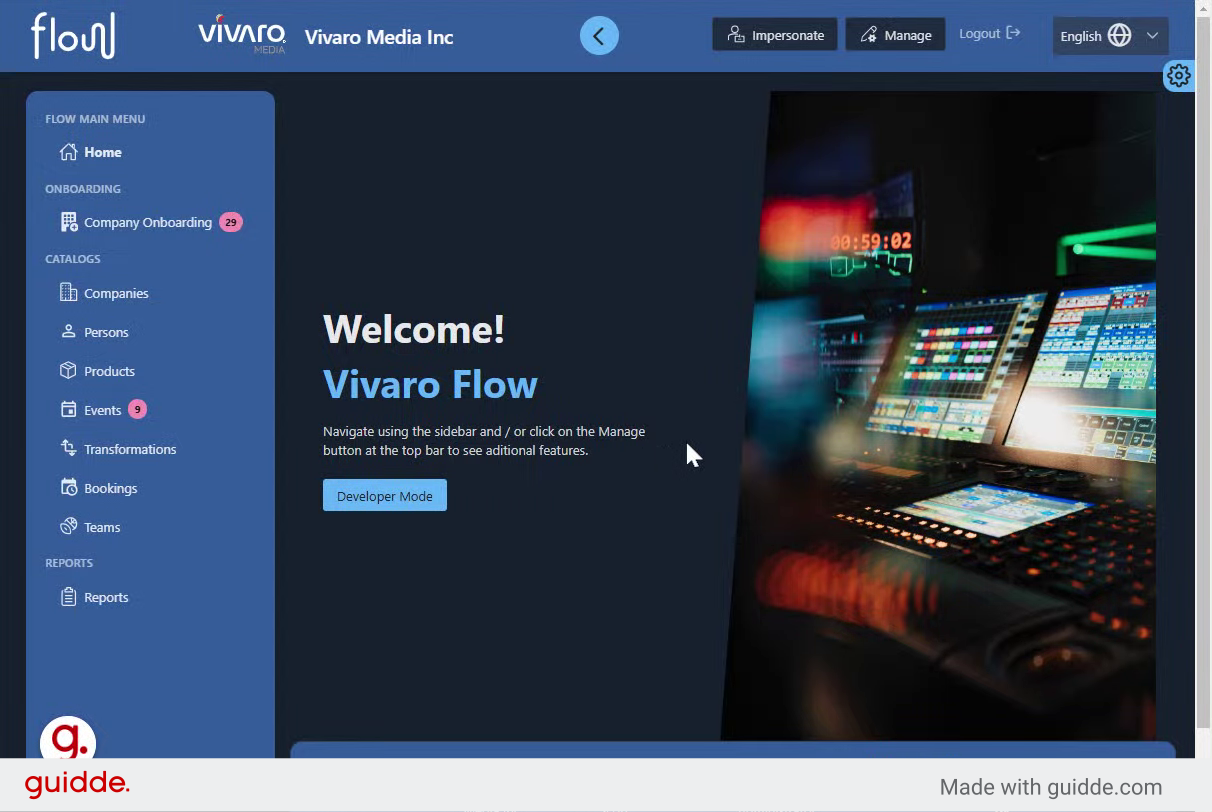
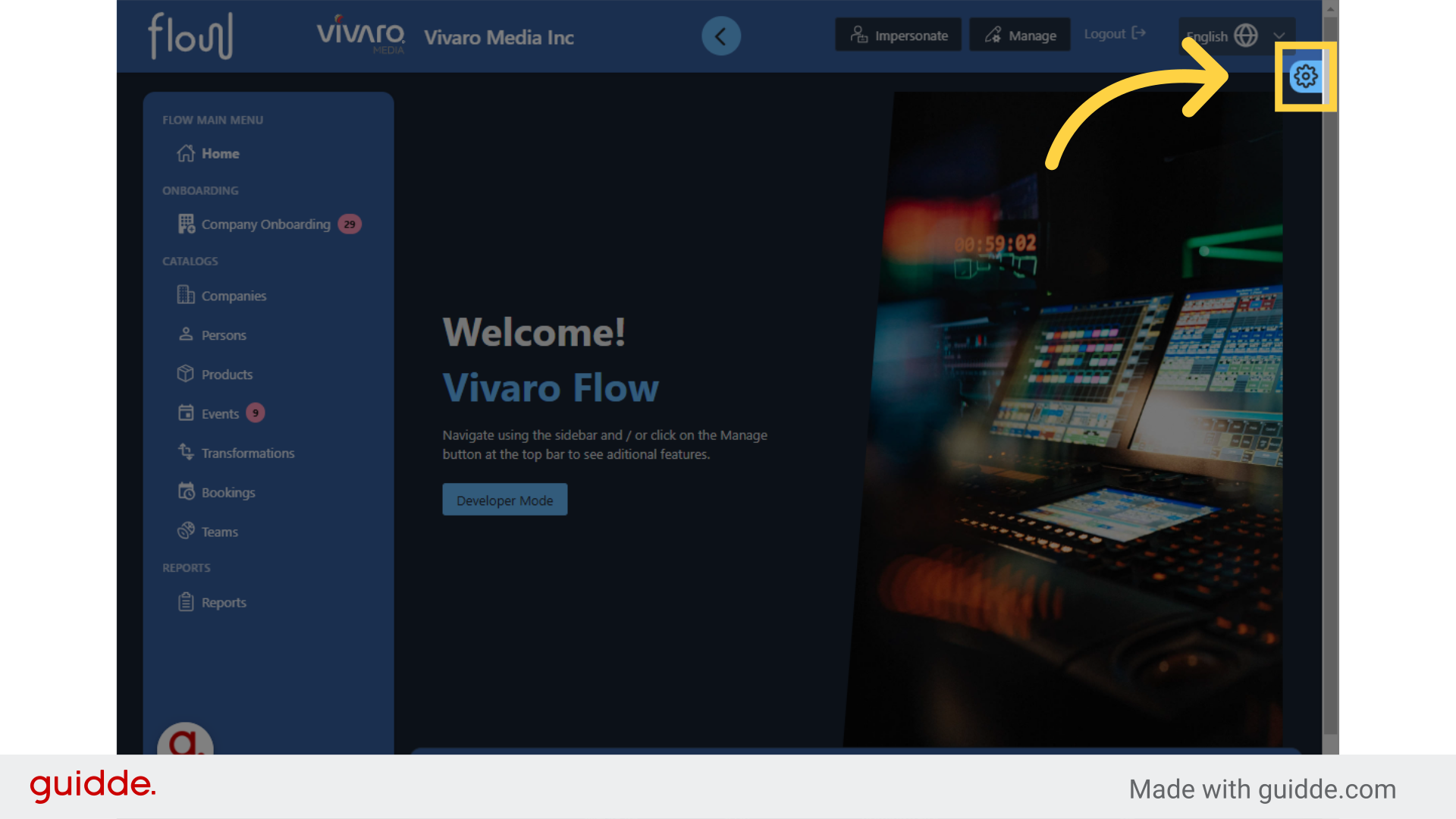
### 2. Click the Gear Icon
First, click on the gear icon to access your settings menu.
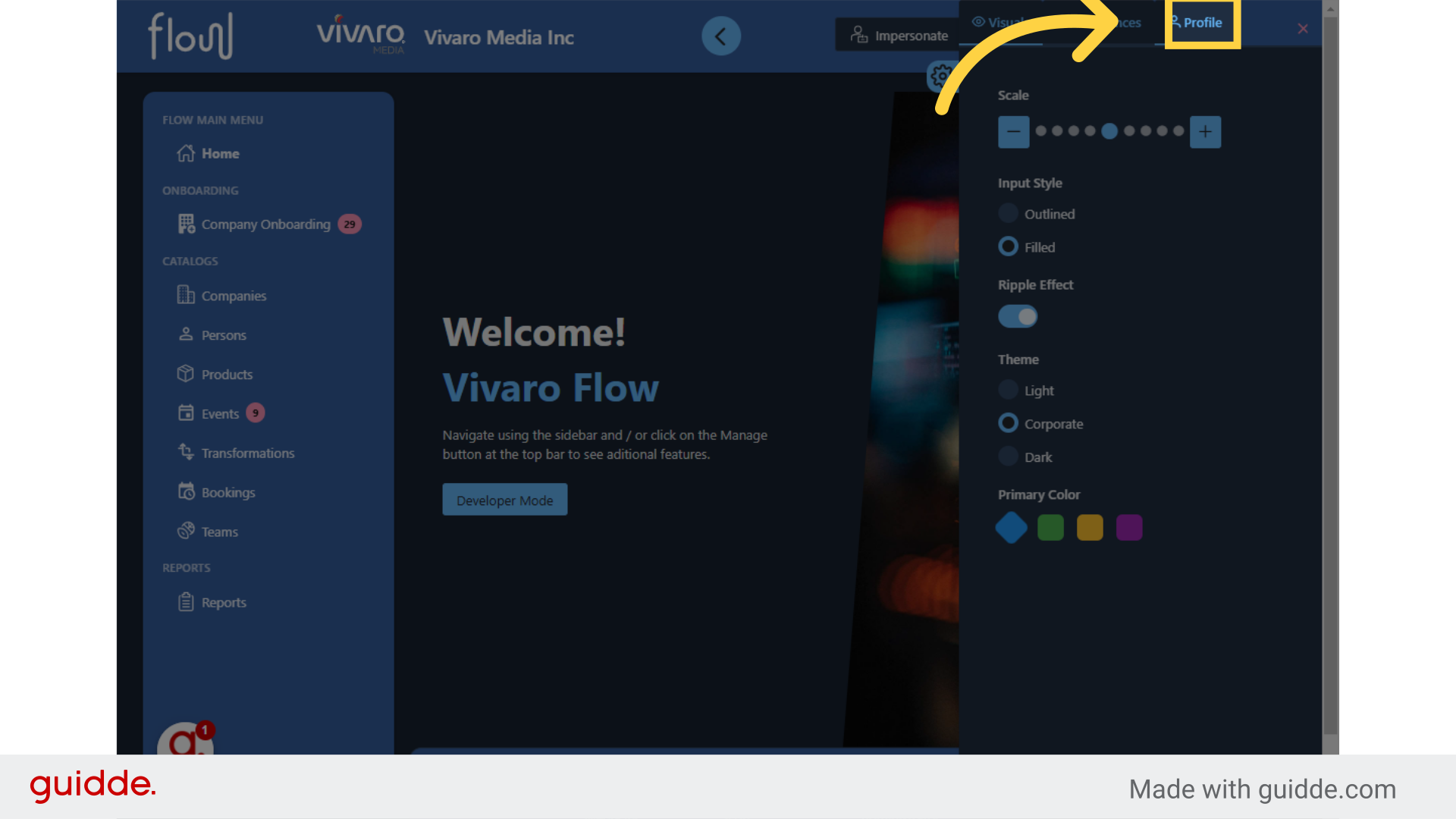
### 3. Click "Profile"
Next, click on profile.
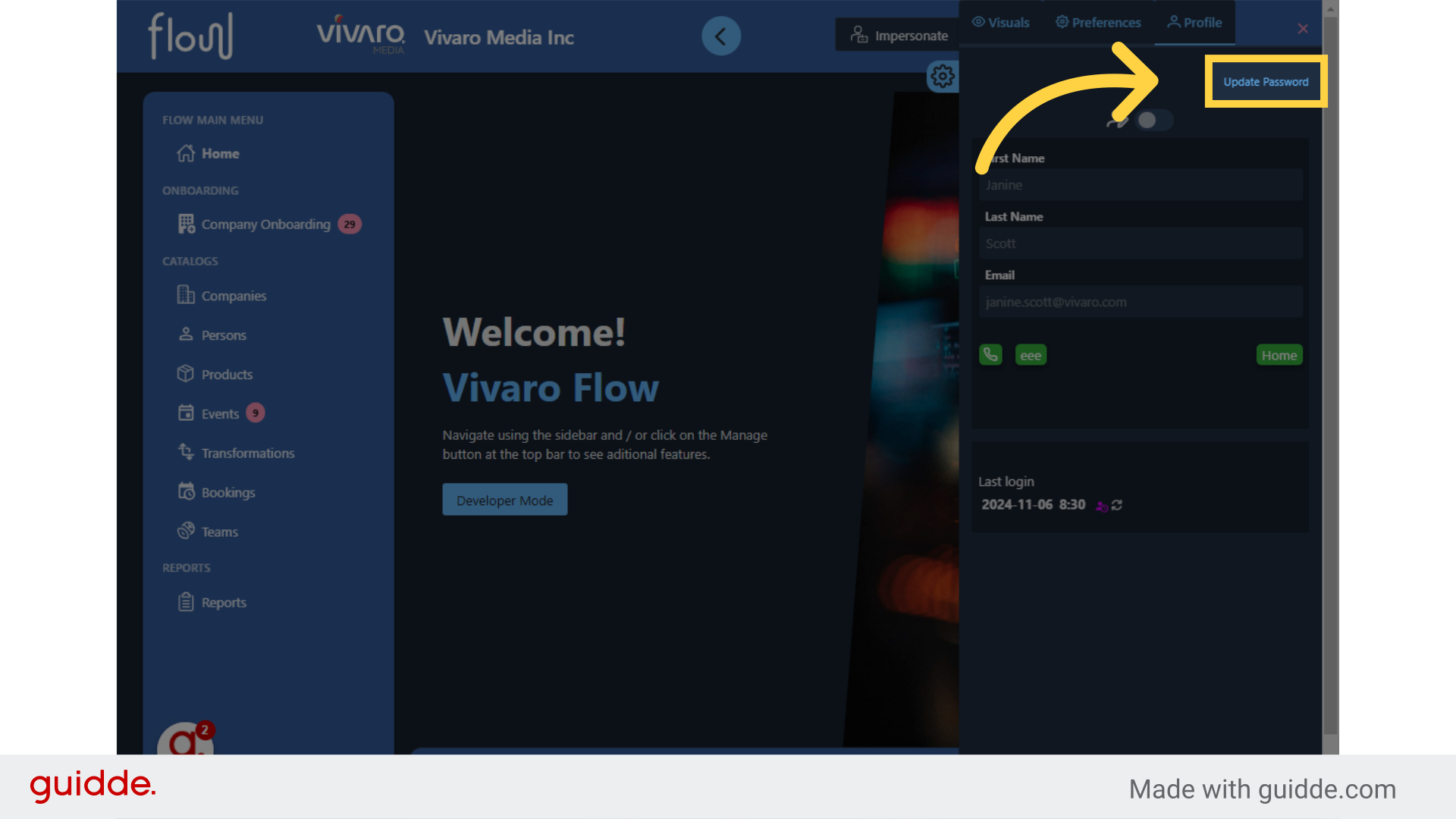
### 4. Select "Update Password"
From here. Select update password.
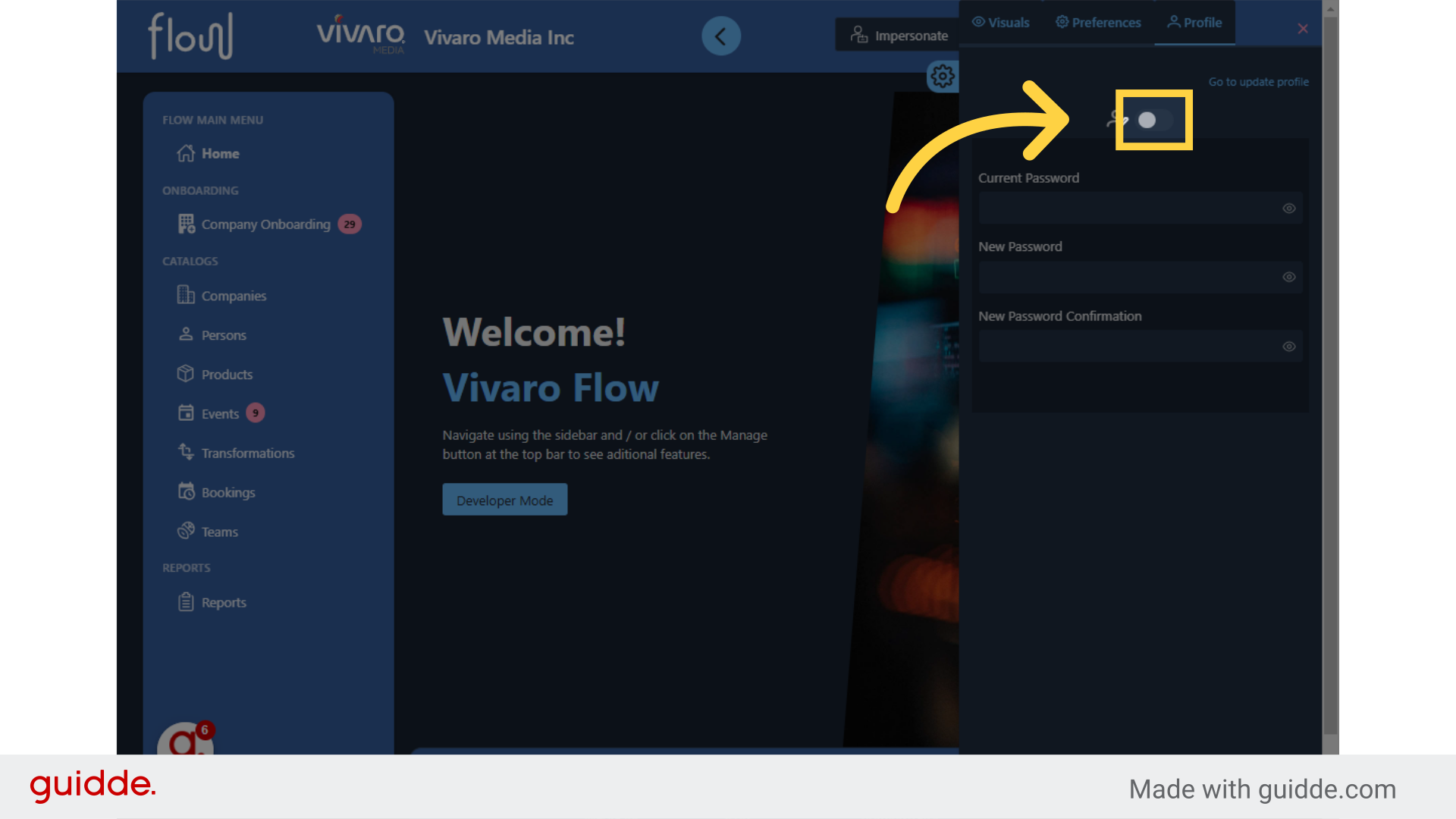
### 5. Toggle "On" to Edit
First, we need to enable editing. Next to the person icon. Toggle on the option. And the toggle will turn blue.
### 6. Type in Current Password
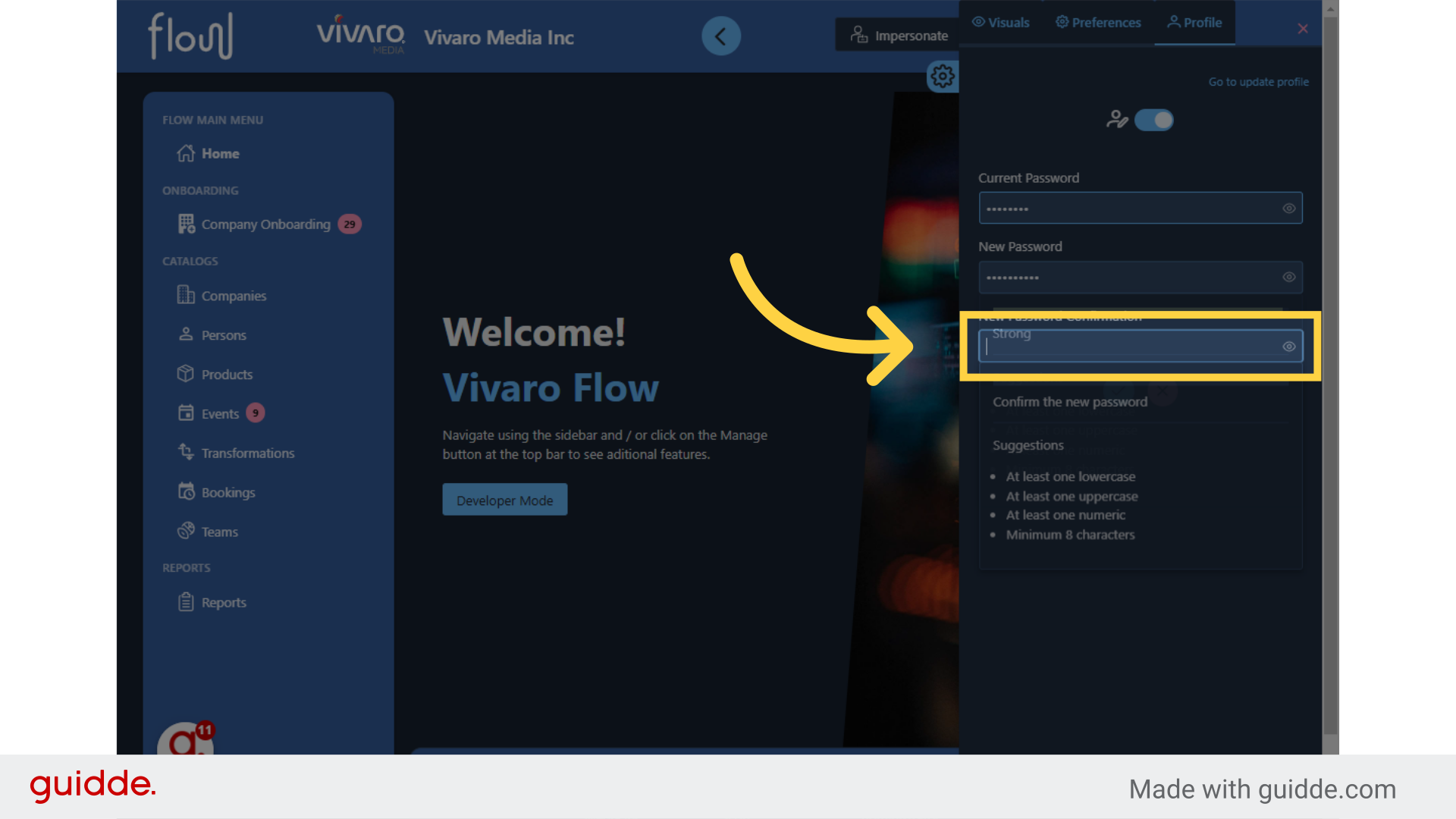
Now, you can click on the text box. And complete your existing password. If this is your first time logging in, you may need to refer to your email that provide you with an initial temporary login password.

### 7. Type in a New Password
Proceed to the next text box and type in a new and secure password.

### 8. Retype the New Password
In the text box just below retype. The password that you've just created as a confirmation step.
### 9. Click to Save
Below the confirmation step. You can now click the blue check marks. If you're ready to save,

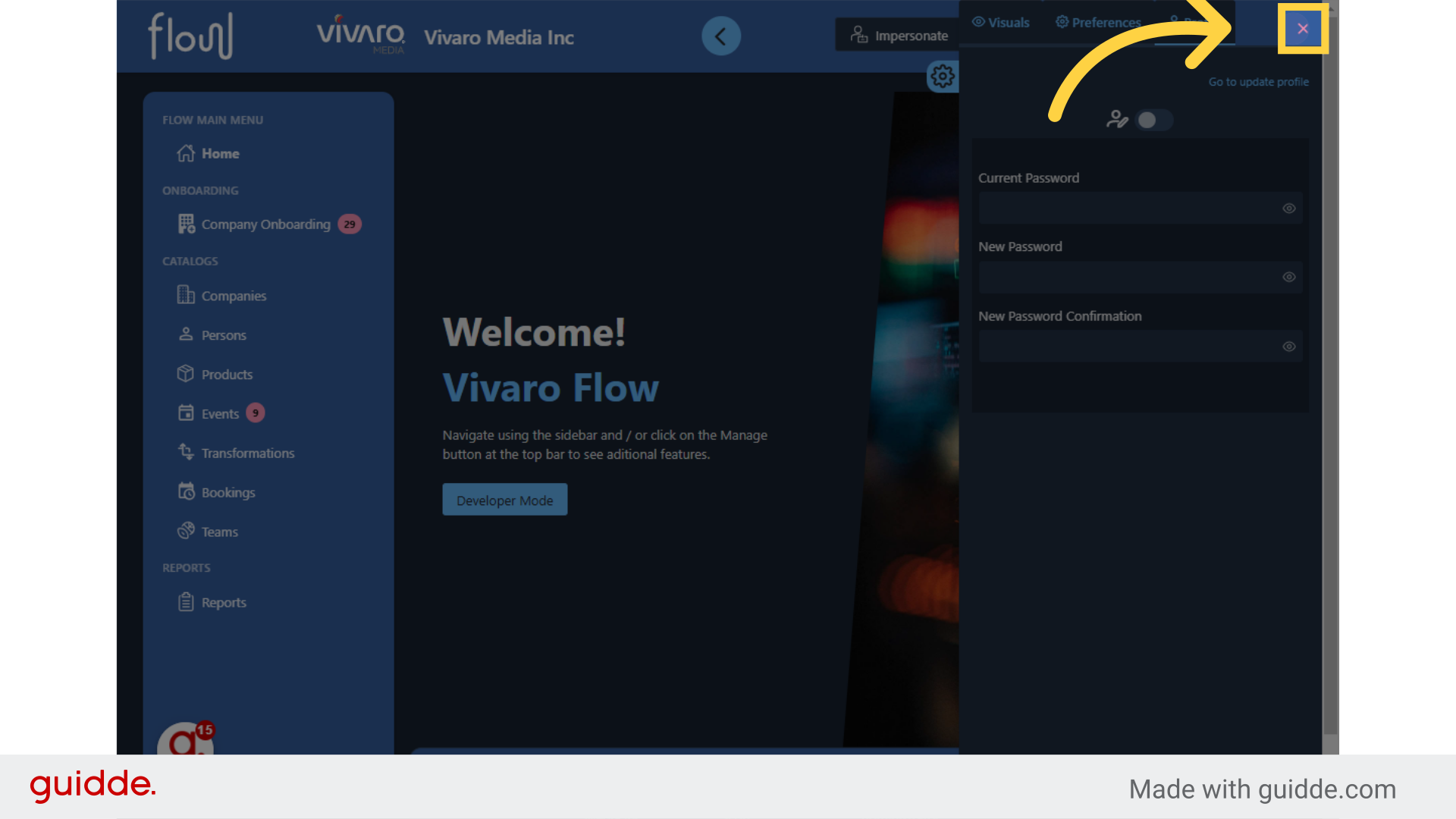
### 10. Click "X" to Close the Menu
Now that you've confirmed your new password, you can close and exit the settings menu by clicking the Red X on the top, right?
[Powered by **guidde**](https://www.guidde.com)
- [flow](https://faq.vivaro.media/en-ca/flow/flow?hsLang=en-ca)
- [General](https://faq.vivaro.media/en-ca/flow/general?hsLang=en-ca)
- [Support](https://faq.vivaro.media/en-ca/flow/support?hsLang=en-ca)
[](http://aldea.tv)
[mailto:email@email.com](mailto:email@email.com)
Copyright © 2026, Vivaro Media